
PowerShell is one of the languages that makes Localization very easy to implement. But what is Localization (l10n)? Is that different from Internationalization (i18n)?
⏩ I know localization is important⏩
If your primary language is English, and you haven’t traveled, it’s easy to forget that there’s an entire globe of people who don’t speak English. Maybe you’ve visited a neighborhood where the primary language is different, and can remember how disorienting that can be.
Internationalization (i18n) is the process of changing your software so that it isn’t hard coded to one language. Localization (l10n) is the ongoing effort of adding more resources to support new languages.
Why is this so important to me? I’m a first generation Mexican American, aka Chicano, who grew up in a home where the primary language was Spanish. I spoke only Spanish until the age of 5, where in first grade I was placed (due to classroom limits) into an English speaking classroom. I definitely struggled that year, but thanks to my family my brother and I quickly transitioned. (Also, thank you, video games). But I’ll never forget having to leave the safety of my friends and being placed into a class where my communication capabilities were next to none. That experience taught me firsthand how language barriers can isolate people - which is why I’m passionate about making PowerShell accessible to everyone, regardless of their primary language.
Localization in PowerShell#
PowerShell luckily provides us an easy way to create a variable that contains
our text. We can simply create a PowerShell Data file (PSD1) and import it with
Import-LocalizedData. Let’s see it in action.
In our .\en-US\Messages.psd1:
ConvertFrom-StringData @'
Welcome = "Welcome to the jungle!"
Goodbye = "Bye, bye, bye, lil Sebastian."
LaughError = "HAHA! Error: {0}"
'@
In the .\main.ps1 script:
Import-LocalizedData -BindingVariable "Messages"
Write-Host $Messages.Goodbye
If you run the main.ps1 file it’ll output:
> .\main.ps1
Bye, bye, bye, lil Sebastian.
Great! I mean, we got the expected text… but RIP lil Sebastian.

Let’s Support A New Language#
The Messages.psd1 contains the key and values of our text. To support a new
language you’ll need to make the same file, but under a new folder. The folder
would match the new supported language. To support US Spanish you could create
.\es-US\Messages.psd1. Note that the keys stay the same, but the values
change. The file would look like:
ConvertFrom-StringData @'
Welcome = "¡Bienvenido a la jungla!"
Goodbye = "Adiós, adiós, adiós, pequeño Sebastian."
LaughError = "¡JAJA! Error: {0}"
'@
Culture Fallback#
After posting this, Thomas Nieto (of anypackage.dev fame) reached out. We discussed (read: he schooled me) in some additional ways to handle the culture fallback. Previously I was adding the data into the psm1 in case the locale wasn’t able to be determined. There are actually several alternatives when specific cultures aren’t available.
The way fallback works is country, then language, then default.
For example if we looked for Messages.psd1 on a device with the locale set to
es-US it would look in the following order:
.\es-US\Messages.psd1.\es\Messages.psd1.\Messages.psd1
VSCode PowerShell Localization#
Speaking of making localization easier for users, I also wanted it to be easy for developers. One challenge that I experienced was that it can be difficult to tell what a particular localized variable says.
Through the PS Inclusive Organization that Jake Hildreth and I started, I decided to create a VS Code extension. I was able to create the PowerShell Localization extension which allows you to see values decorated inline.
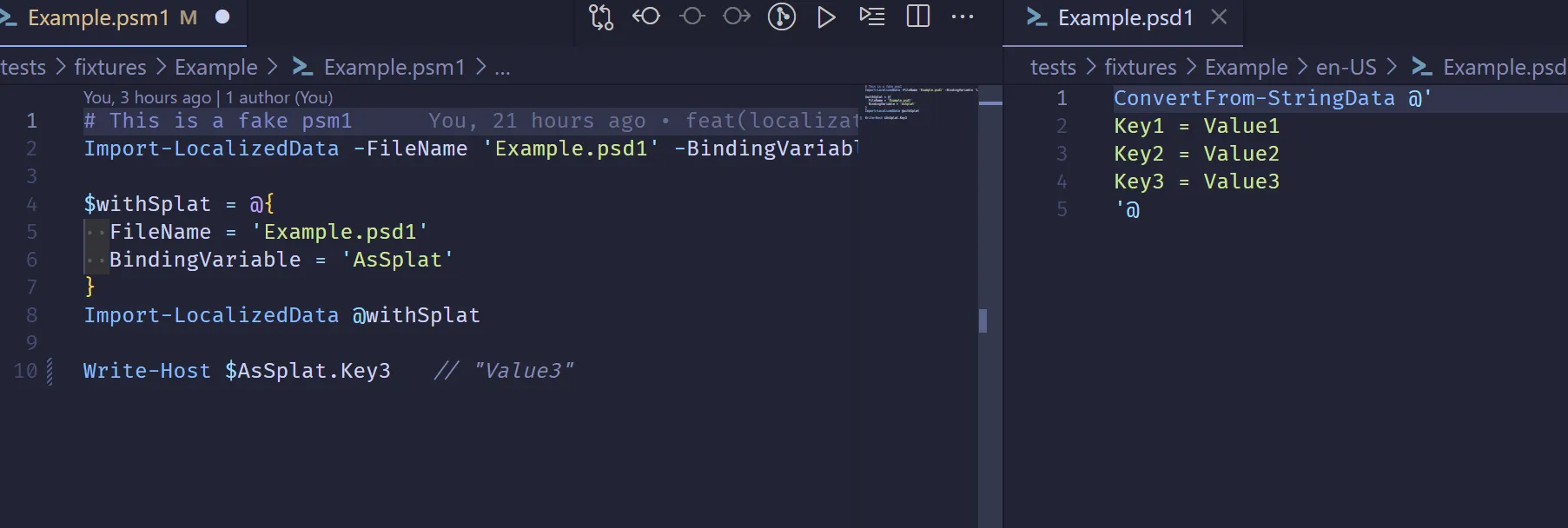
You can install the extension to make it easier to see what your code would output.
Community Support#
So we’ve created 2 language files to support en-US (US English) and es-US
(US Spanish), but what about all the other languages? This is where a community
supporting program like Crowdin can be immensely helpful. While there are
obvious paid features, for open source software you can actually create a free
project.
For end users who would like to contribute, they would submit their suggestions on the project portal. This goes through review before syncing to your codebase. You can see an example of that portal at Psake translation project on Crowdin.
There are several approaches to syncing changes from Crowdin, but I’m a fan of the GitHub Integration. You can define the English source, and where the outputted files would be called and where to place them.
Localizations as PSD1 vs YML#
The PowerShell Data format has some limitations that can make it difficult to
use. The PSD1 format is not a format supported by Crowdin. Inside of the psd1
files, we’re limited to a certain set of functions. For example,
ConvertFrom-JSON is not available. ConvertFrom-StringData is the most common
to use.
YAML is another file type supported in Crowdin. It can be read without modifying the keys (which other formats do) making it an ideal format to use as a source.
Thanks to the powershell-yaml module, we can ConvertFrom-Yaml and use our
PowerShell knowledge to generate our desired formats.
Psake: An Example#
For the Psake project I decided that it would be easier to generate the PSD1’s as part of the build process and to start with YAML files. Using the psd1 file would mean that Crowdin wouldn’t be able to read it automatically and I wanted this to be as easy for contributors and maintainers as possible.
Overall Process#
graph TD
    A["\l10n\en-US.yml
(Source File)"] --> B["Build Script
(Process l10n folder)"]

    %% Other l10n files
    C["\l10n\es-ES.yml"] --> B
    D["\l10n\fr-FR.yml"] --> B
    E["\l10n\de-DE.yml"] --> B
    F["...other l10n files"] --> B

    %% Build script outputs
    B --> G["src\en-US\Messages.psd1"]
    B --> H["src\es-ES\Messages.psd1"]
    B --> I["src\fr-FR\Messages.psd1"]
    B --> J["src\de-DE\Messages.psd1"]
    B --> K["...other culture folders"]

    %% Git sync to Crowdin
    A --> L["Git Sync to Crowdin"]
    L --> M["Crowdin Project
(en-US as source)"]

    %% Crowdin creates/updates translations
    M --> N["Crowdin creates/updates:
- es-ES.yml
- fr-FR.yml
- de-DE.yml
- ...other cultures"]

    %% Sync back to repo
    N --> O["Sync back to repo
(Update l10n files)"]
    O --> C
    O --> D
    O --> E
    O --> F

    %% Styling
    classDef sourceFile fill:#e1f5fe,stroke:#0277bd,stroke-width:2px
    classDef buildScript fill:#f3e5f5,stroke:#7b1fa2,stroke-width:2px
    classDef outputFiles fill:#e8f5e8,stroke:#388e3c,stroke-width:2px
    classDef crowdinProcess fill:#fff3e0,stroke:#f57c00,stroke-width:2px

    class A sourceFile
    class B buildScript
    class G,H,I,J,K outputFiles
    class L,M,N,O crowdinProcess
Source File:
\l10n\en-US.ymlserves as the primary source for all localization stringsen-US: error_invalid_task_name: "Task name should not be null or empty string." ...Build Process: A build script reads all YAML files in the
\l10n\directoryOutput Generation: For each language file, creates corresponding PowerShell data files in
src\{culture}\Messages.psd1Crowdin Integration:
- Git sync pushes the source file (
en-US.yml) to Crowdin - Crowdin uses this as the source for translation
- Translators work on other language versions
- Completed translations sync back to the repository as new/updated YAML files
- Git sync pushes the source file (
Continuous Loop: Updated translations trigger the build process again, creating fresh PowerShell message files
This creates a complete localization pipeline where:
- Developers maintain the English source
- Build automation handles PowerShell file generation
- Crowdin manages the translation workflow
- The process repeats as translations are updated
Crowdin Configuration#
Our crowdin.yml file contains the following which automatically determines the
filename.
"files": [
  {
    "source": "/l10n/en-US.yml",
    "translation": "/l10n/%locale%.yml"
  },
  {
    "source": "/l10n/en-US.yml",
    "translation": "/l10n/%two_letters_code%.yml"
  },
]
Generating PSD1’s from YAML#
Here’s the complete build script that handles the YAML-to-PSD1 conversion:
$src = Join-Path $PSScriptRoot -ChildPath 'src'
# First we gather all the language files
$languages = Get-ChildItem -Path "$PSScriptRoot\l10n" -Filter '*.yml' -File

foreach ($lang in $languages) {
    # Using powershell-yaml module we can convert the yaml to a PSObject
    $yaml = Get-Content -Path $lang.FullName -Raw | ConvertFrom-Yaml

    # The first (and only key at the very top level is the locale name. e.g. en-US)
    foreach ($locale in $yaml.Keys) {
        Write-Verbose "Processing locale: $locale"
        $localeDir = Join-Path -Path $src -ChildPath $locale
        if (-not (Test-Path -Path $localeDir)) {
            New-Item -Path $localeDir -ItemType Directory > $null
        }

        $psd1 = Join-Path -Path $localeDir -ChildPath "Messages.psd1"
        $content = [System.Text.StringBuilder]::new()

        # Write a warning message to let folks know not to modify them by hand.
        $warningMessage = "# This file is auto-generated from YAML localization files. Do not edit manually."
        [void]$content.AppendLine($warningMessage)
        [void]$content.AppendLine("ConvertFrom-StringData @'")

        # Under the root key we have each of the keys we want in the PSD1
        foreach ($key in $yaml[$locale].Keys) {
            Write-Verbose "Processing key: $key"
            # We don't need to worry about escaping here, as the keys are simple strings
            # and the values are already escaped by ConvertFrom-Yaml
            $value = $yaml[$locale][$key]
            [void]$content.AppendLine("    $key=$value")
        }
        [void]$content.AppendLine("'@")
        Write-Verbose "Writing to $psd1"
        Set-Content -Path $psd1 -Encoding UTF8 -Value $content.ToString()
    }
}Conclusion#
Building inclusive software isn’t just about good intentions - it’s about creating tools that work for everyone. PowerShell’s built-in localization features make it surprisingly straightforward to support multiple languages, and with community platforms like Crowdin, you can scale translations without burning out your maintainers.
The next time you’re building a PowerShell module that others might use, consider adding localization from the start. It’s easier than you think, and for someone working in their second (or third) language, seeing familiar text in their native tongue can make the difference between struggling through documentation and actually getting work done.
Your users shouldn’t have to adapt to your language - your tools should adapt to theirs. PowerShell gives us the pieces; we just need to put them together.
References#
The PowerShell docs continue to be a great resource to learn about this. If you know of any other references that can help with localization, please share them in the comments!
- Import-LocalizedData Learn Docs
- Import-PowerShellDataFile Learn Docs
- about_Data_Files Learn Docs
- Psake translation project on Crowdin
- PSInclusive is the org where we are putting out tools to help with Accessibility and Inclusivity for the PowerShell community.
